Batch watermarking for Mac
Watermark a whole folder of photos in one pass
To watermark many photos at once on a Mac, drop the folder into ImageCrush, add a text or logo watermark, pick a single, tiled, or diagonal layout, and export. Every photo gets the same watermark in one batch, resized and converted if you need it, and nothing is uploaded.
$14.99 one-time · macOS 15.7+ · No account required
How to batch watermark photos on a Mac
Drop in your photos
Drag files or an entire folder from Finder into ImageCrush. Hundreds of images at once is fine. JPG, PNG, WebP, HEIC, and AVIF are all supported.
Add your watermark
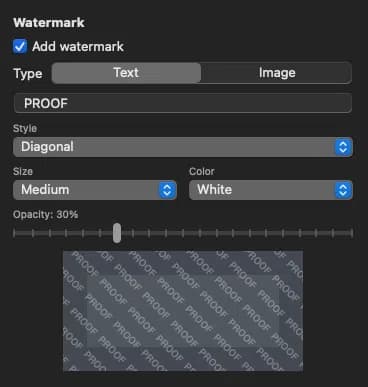
Type a text watermark, like your studio name or “PROOF”, or choose a logo image. A PNG with a transparent background gives the cleanest result.
Choose a layout
Single placement for branding, a tiled grid for full coverage, or a diagonal pattern that’s hard to crop around. Adjust opacity, size, color, and position.
Check the live preview
The preview shows exactly how the watermark lands on each image before anything is exported, so there are no surprises across the batch.
Set size and format
Optionally set a maximum width and height (proofs rarely need full resolution), pick JPG or WebP, and set the quality.
Export and save a preset
Export the whole batch to a new folder; your originals are never touched. Save the settings as a preset and the next shoot takes one click.
Built for proof galleries
Sending proofs is where most photographers need batch watermarking. A tiled or diagonal watermark makes it obvious the image is a proof, not a final, and it can’t be cropped out the way a corner logo can.
Be realistic about what a watermark does, though. We tested 324 AI removal attempts against every watermark technique we could build, and AI removed them all. A visible watermark is a signal and legal evidence, not a lock. Real protection comes from pairing it with lower resolution, so even a cleaned-up proof isn’t usable at print size.
ImageCrush does both in the same pass: watermark plus a maximum size, saved as one preset.

Text or logo, three layouts
Single places one watermark wherever you want it. Use it for branding portfolio images, social posts, and client deliverables.
Tiled grid repeats the watermark across the whole image. It’s the standard for proofs and stock-style previews.
Diagonal runs the pattern at an angle, which is harder to crop or paint around than a straight grid.
Every layout has adjustable opacity, size, color, and position, and works with text or an image/logo.
Client photos stay on your Mac
Online watermark tools need you to upload your images, usually client work, to someone else’s server, often with batch-size limits or a subscription.
ImageCrush runs entirely on your Mac inside Apple’s App Sandbox. Nothing is uploaded, it works offline, and there’s no limit on how many photos you process.
The rest of the export, done too
Watermarking is usually one step of several. In the same batch, ImageCrush can resize to a maximum width and height, crop to any of 17 aspect ratios, convert between JPG, PNG, WebP, HEIC, and AVIF, compress with a quality slider, and rename files with a custom name, suffix, and sequence numbers, like smith-wedding-proof-001.jpg.
Save all of it as a preset per client, per platform, or per job type.
Frequently asked questions
Can’t find what you’re looking for? Ask us directly.
Yes. Drop a folder of photos into ImageCrush, set up a text or logo watermark once, and export. The watermark is applied to every image in the batch, whether that’s 10 photos or 1,000.
Yes. Choose an image watermark and select your logo file. A PNG with a transparent background works best. Then set its size, opacity, position, and layout just like a text watermark.
No. ImageCrush exports new files to the folder you choose and never overwrites your originals. If a file with the same name already exists, it adds a number instead of replacing it.
Partly. Preview can add a text box to one image at a time, and Shortcuts can be set up to overlay an image. Neither gives you tiled or diagonal layouts, a live preview, or batch resizing and renaming in the same step.
Not directly. ImageCrush imports JPG, PNG, WebP, HEIC, HEIF, and AVIF. Export JPGs from Lightroom, Capture One, or Photos first, then watermark and resize the batch in ImageCrush.
Usually, yes. In our testing, AI tools removed visible watermarks, including tiled and randomized ones, at both 30% and 60% opacity. Use a watermark as a clear proof signal and pair it with lower resolution for real protection. Read the full test results
Related reading
Try it on your next batch
The 7-day trial includes every feature, with no account and no credit card. If it earns a place in your workflow, it’s a one-time $14.99.