Batch image resizer for Mac
Resize a folder of images to exact dimensions in one pass
To batch resize images on a Mac, drag the files or folder into ImageCrush, enter a maximum width and/or height in pixels, and export. Every image is scaled to fit while keeping its aspect ratio. You can crop, convert, compress, and rename in the same pass, and nothing is uploaded.
$14.99 one-time · macOS 15.7+ · No account required
How to batch resize images on a Mac
Add your images
Drag in files or a whole folder. JPG, PNG, WebP, HEIC, HEIF, and AVIF are supported, with no limit on how many.
Set max dimensions
Enter a maximum width, height, or both. Each image scales down to fit inside that box with its aspect ratio intact.
Crop to a ratio (optional)
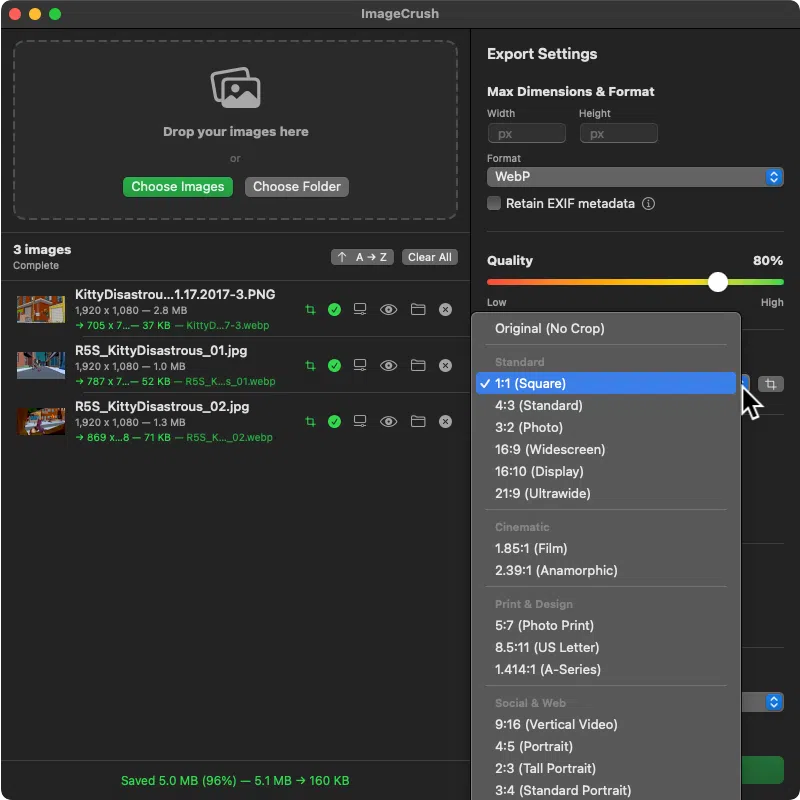
Pick one of 17 aspect ratios (1:1, 4:5, 16:9, 1.91:1 and more) to center-crop every image, or adjust the crop per image in the crop editor.
Choose format and quality
Keep the original format or convert while you resize: JPG, PNG, WebP, HEIC, or AVIF, with a 1–100 quality slider.
Rename the output
Add a suffix like -1200w or a custom name with sequence numbers, so resized files never get confused with originals.
Export
Export to a new folder; originals are never overwritten. Save the settings as a preset (Thumbnail is built in) for next time.
Fit, crop, or both
Fit is what most people mean by resizing. Set a maximum width and height, and every image scales down to fit inside it. A portrait and a landscape photo both come out no larger than, say, 2000 px on the long edge, with no stretching.
Crop is for when every image needs the same shape: square product shots, 4:5 Instagram portraits, 16:9 YouTube thumbnails, or 1.91:1 Open Graph images. Choose a ratio and every image is center-cropped, or step through the queue and set a custom crop per image.
ImageCrush never upscales. If an image is already smaller than your limits, it keeps its original size.
Common sizes
- Website hero images: 2000–2400 px wide
- Blog and CMS content: 1200–1600 px wide
- Open Graph / social share cards: 1200×630 (1.91:1)
- Instagram portrait: 1080×1350 (4:5)
- Product photos: square (1:1), often 2000 px
- Email: 600–1200 px wide
Save each one as a preset and switching between them takes a click. Use a Preset Sequence to export several sizes from the same batch in one pass.
Why not Preview?
Preview can resize several images at once: select them, choose Tools → Adjust Size, and save. It works, but it changes the files in place unless you duplicate them first, it can’t crop to a ratio across a batch, and it won’t convert formats, rename, or remember your settings.
Finder’s Convert Image Quick Action offers only small, medium, large, or actual size. That’s fine for a quick share, not for exact specs.
ImageCrush is for the jobs you repeat: the same dimensions, ratio, format, and naming every time, applied to hundreds of images at once.
Frequently asked questions
Can’t find what you’re looking for? Ask us directly.
In ImageCrush, drag in the images or a folder, enter a maximum width and/or height, and export. Every image is resized to fit while keeping its aspect ratio. Preview can also resize a selection via Tools → Adjust Size, but it edits the files in place.
Yes. Max width and height define a box that each image scales down to fit inside, so nothing gets stretched. If you want every image to be the same shape, pick an aspect ratio to crop them too.
Yes. Choose the 1:1 aspect ratio and set the max width and height to 1080. Each image is cropped to square and scaled to 1080×1080, as long as the original is at least that large.
No. ImageCrush only scales down. If an image is already smaller than your maximum dimensions, it keeps its original size, so you never get blurry upscaled output.
No. Resized images are exported to a separate folder, and if a filename already exists, a number is added instead of replacing it.
Yes. Resizing, cropping, format conversion, compression, renaming, and watermarking all happen in the same export, so one pass produces final, web-ready files. Batch convert to WebP
Related reading
Try it on your next batch
The 7-day trial includes every feature, with no account and no credit card. If it earns a place in your workflow, it’s a one-time $14.99.