Image compressor for Mac
Compress a folder of images without visible quality loss
To compress images on a Mac in bulk, drag them into ImageCrush, pick an output format, set the quality slider (around 75% for the web), and export. Check any image with the before/after slider first. For the biggest savings, resize oversized images and convert to WebP or AVIF in the same pass.
$14.99 one-time · macOS 15.7+ · No account required
How to compress images on a Mac
Add your images
Drag in JPG, PNG, WebP, HEIC, HEIF, or AVIF files, or a whole folder. Batches of thousands are fine.
Pick a format
Keep the same format, or convert. WebP and AVIF are typically far smaller than JPEG and PNG for the same visual quality.
Set the quality
75% is the sweet spot for most web images. Go to 85–90% for portfolio work, or 60% when size matters most.
Resize oversized images
Set a maximum width and height. A 6000 px photo shown at 1600 px is mostly wasted bytes, and resizing often saves more than compression alone.
Compare before and after
Drag the comparison slider across any image to check detail, with file size, percent saved, and dimensions shown below.
Export
Export to a new folder; originals stay untouched. ImageCrush shows the total saved for the whole batch.
See exactly what you’re giving up
Compression is a trade-off, so ImageCrush makes it visible. The before/after slider shows the original and compressed versions of any image side by side at pixel level. Below it you see the file size before and after, the percentage saved, and the dimensions.
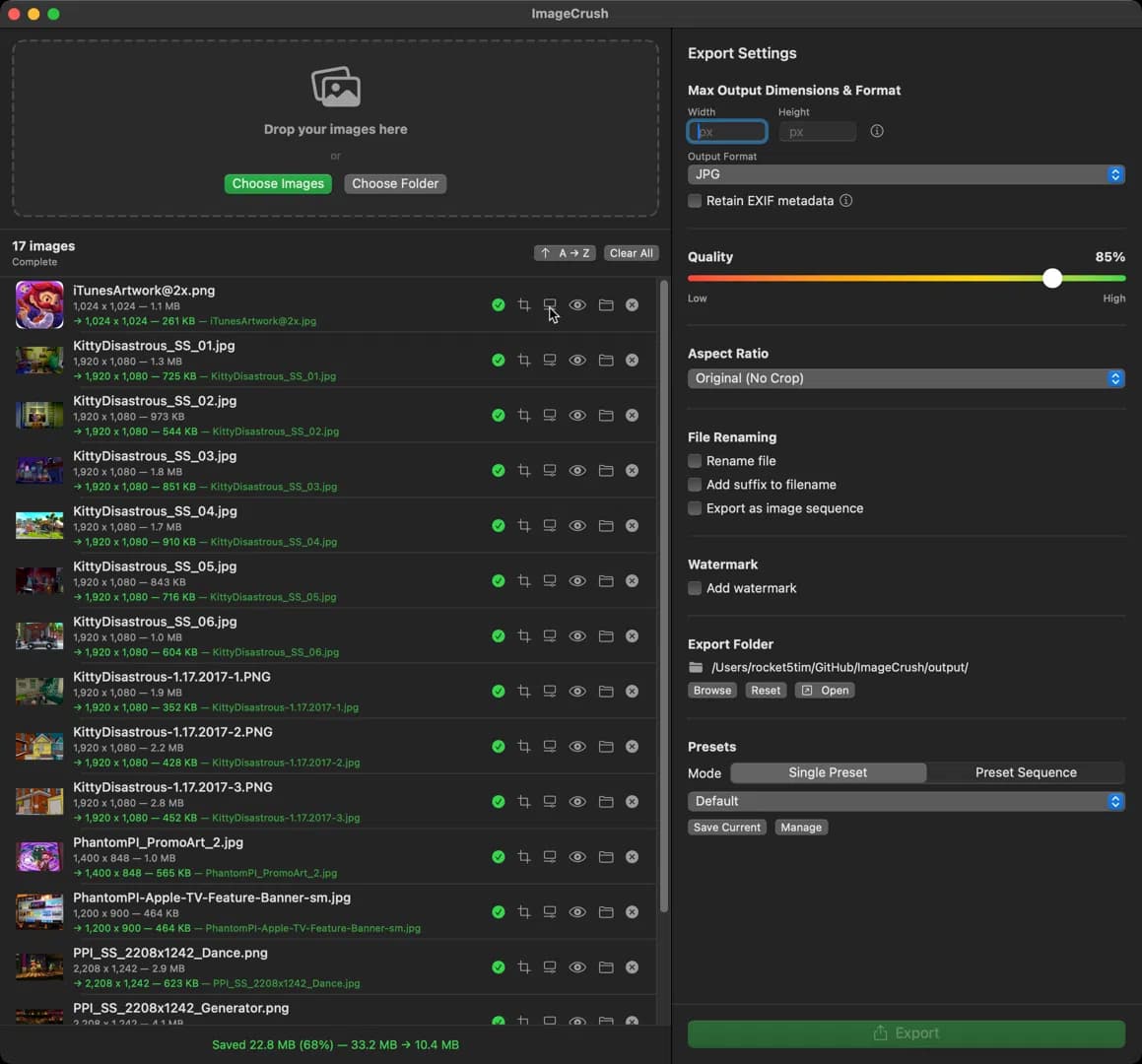
After export, every file shows its new size, and the batch shows a running total. In one real export, 17 game screenshots and promo images (a mix of PNG and JPG) went from 33.2 MB to 10.4 MB (68% smaller) as 85% quality JPGs, with no resizing.
Where the big savings come from
The quality slider is only one lever. In our format benchmarks:
- Quality: dropping from 90% to 75% roughly halved file size for WebP, HEIC, and AVIF.
- Format: converting PNG screenshots to JPEG cut them to about 18% of their original size; AVIF got them to about 6%.
- Dimensions: halving the width of an image cuts its pixel count by roughly 75%, before compression even starts.
ImageCrush does all three in one export, which is why it typically beats compression-only tools on total size.
ImageCrush vs ImageOptim
ImageOptim is free and excellent at one thing: making existing JPEG and PNG files smaller without changing their format or dimensions. If that’s all you need, use it.
ImageCrush is for when compression is part of a bigger job: resize, crop, convert to WebP, HEIC, or AVIF, rename, watermark, and save the whole recipe as a preset. Read the full comparison.
No uploads, no limits
Web compressors like TinyPNG upload your images to a server and cap free batches. ImageCrush compresses everything locally using Apple’s image frameworks and optimized open-source codecs, with up to 8 images processed in parallel. It works offline and has no file limits.
Frequently asked questions
Can’t find what you’re looking for? Ask us directly.
Lower the quality, resize to the dimensions you actually need, or convert to a more efficient format like WebP or AVIF. ImageCrush does all three in one batch export. For a single image, Preview’s Export dialog also has a JPEG quality slider.
Lossy compression always discards some data, but at around 75–85% quality the difference is very hard to see in normal viewing. Use the before/after slider to check detail before you export.
Around 75% is the best balance for most web images. Going below 60% saves less than you’d expect and starts to show artifacts in gradients and fine detail.
PNG is lossless, so a quality slider doesn’t shrink it. The biggest savings come from converting PNGs to WebP, which keeps transparency, or to JPEG if transparency isn’t needed, and from resizing. Convert PNG to WebP
They solve different problems. ImageOptim is a free compression-only tool for JPEG and PNG. ImageCrush adds resizing, cropping, format conversion (including WebP, HEIC, and AVIF), renaming, watermarks, and presets for $14.99 one-time. Full ImageCrush vs ImageOptim comparison
No. All compression happens on your Mac inside Apple’s App Sandbox. Nothing is uploaded, and it works without an internet connection.
Related reading
Try it on your next batch
The 7-day trial includes every feature, with no account and no credit card. If it earns a place in your workflow, it’s a one-time $14.99.